
Finding and Fixing Search Functionality Issues in React Product Lists
Search functionality is one of the most critical features in any modern web application — especially eCommerce stores, dashboards, and product listings. When users type into your search bar, they expect instant, accurate, and relevant results. But in many React apps, the search feature can break, lag, or return unexpected outputs.
If your product list search isn’t behaving correctly, this guide will help you understand the root causes, common mistakes, debugging steps, and best-practice solutions to ensure a smooth and reliable search experience.
⭐ Why Search Breaks in React Apps
Before jumping into fixes, it helps to understand why search issues happen. Here are the most common causes:
✓ Incorrect state updates
If your input field doesn’t properly update state, searches won’t trigger or update the list.
✓ Filtering incorrect data
Developers often filter a transformed or outdated array instead of the original data.
✓ React rendering issues
Improper component structure or excessive re-renders can cause lag or stale results.
✓ Asynchronous data fetching delays
If products come from an API, search may run before data arrives.
✓ Case sensitivity
Searching “rice cooker” may not match “Rice Cooker” if filtering isn’t case-insensitive.
✓ Debounce missing
Every keystroke triggers a re-render, causing performance issues in large product lists.
✓ Wrong dependency arrays
useEffect may run too many (or too few) times.
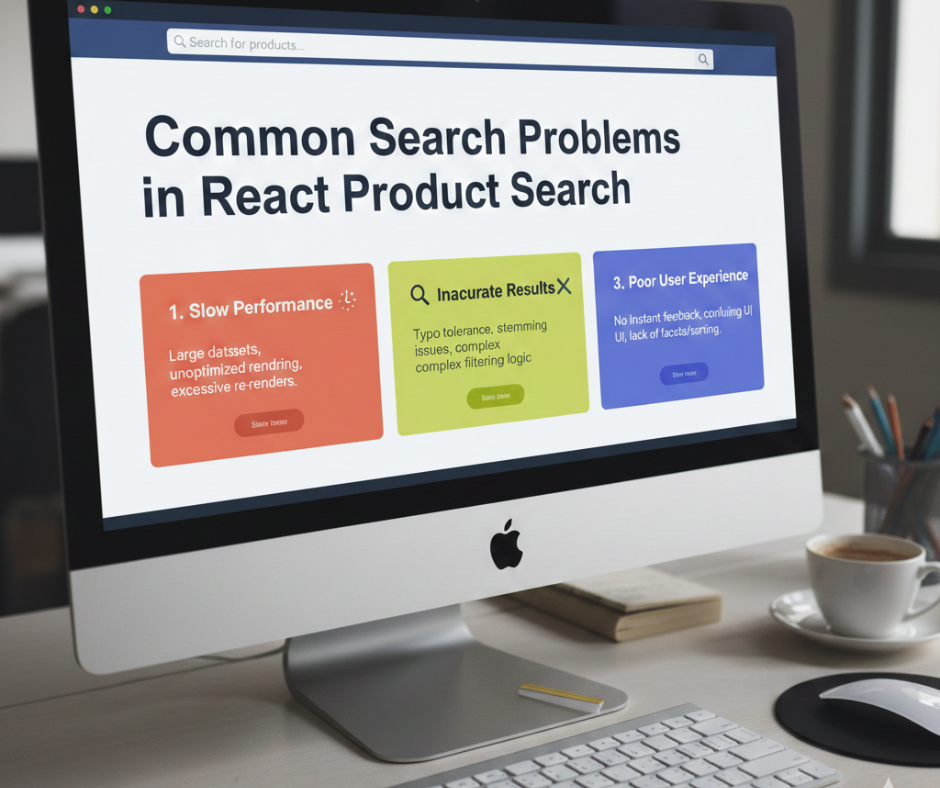
⭐ Common Search Problems in React Product Lists (and How to Fix Them)
Let’s break down the most frequent issues and how to solve each correctly.
1. Search Doesn’t Work at All
Issue: Typing in the input does nothing.
Cause: The input value isn’t tied to state or the filter logic isn’t connected.
Fix: Ensure controlled inputs and proper state updates
const [query, setQuery] = useState("");

<input
  type="text"
  value={query}
  onChange={(e) => setQuery(e.target.value)}
/>
Now filter your list using this query:
const filteredProducts = products.filter((item) =>
  item.name.toLowerCase().includes(query.toLowerCase())
);
2. Search Works, But Results Don’t Update Live
Issue: You need to press Enter or leave the field for results to update.
Cause: You’re using onSubmit or not re-rendering on every keystroke.
Fix: Use onChange for instant filtering
onChange={(e) => setQuery(e.target.value)}
React will re-render automatically for every character typed.
3. Search Returns Wrong or Partial Results
Issue: Searching “phone” shows random items or incomplete matches.
Cause: You may be filtering a modified version of the products array.
Fix: Always filter using the ORIGINAL dataset
const filteredProducts = originalData.filter(...);
If you filter the already-filtered array, results shrink incorrectly.
4. Case-Sensitive Search Issues
Issue: “Laptop” matches, but “laptop” doesn’t.
Cause: Missing string normalization.
Fix: Convert both search text and product fields to lowercase
item.name.toLowerCase().includes(query.toLowerCase())
This ensures consistent matching.
5. Search Is Slow on Large Product Lists
Issue: Laggy typing, delayed results.
Cause: Too many renders or heavy filtering operations.
Fix 1: Add Debouncing
import { useDebounce } from "use-debounce";
const [debouncedQuery] = useDebounce(query, 300);
Fix 2: Use React.memo for product list items
Use memo to prevent unnecessary re-renders.
Fix 3: Use useMemo for filtering
const filteredProducts = useMemo(() => {
  return products.filter((item) =>
    item.name.toLowerCase().includes(debouncedQuery.toLowerCase())
  );
}, [debouncedQuery, products]);
6. Search Doesn’t Work with API-Fetched Products
Issue: Filtering runs before products load.
Cause: Search runs when products is still an empty array.
Fix: Add loading conditions
if (loading) return <Spinner />;
Or wrap search logic:
if (!products.length) return [];
7. Searching Multiple Fields Doesn’t Work
Issue: Searching should match name, description, or category — but only one works.
Fix: Add multi-field filtering
const filteredProducts = products.filter((item) =>[item.name, item.category, item.description]
.join(” “) .toLowerCase() .includes(query.toLowerCase()) );
Or use a cleaner method:
const fields = ["name", "category", "description"];

products.filter((item) =>
  fields.some(field =>
    item[field].toLowerCase().includes(query.toLowerCase())
  )
);
8. Search Resets During Pagination or Sorting
Issue: Search disappears when you change pages.
Cause: Filtering logic is placed after pagination or sorting.
Fix: Apply search BEFORE pagination
Correct order:
- Filter
- Sort
- Paginate
const processed = paginate(sort(filter(products), sort), page);
⭐ Best Practices for Clean, Bug-Free Search in React (2025)
✔ Keep your product list in a central state (context, Redux, or a parent component)
So search always uses the correct dataset.
✔ Always normalize strings (lowercase + trim)
Helps avoid hidden mismatches.
✔ Add debounce for better performance
Prevents 10+ renders per second.
✔ Use useMemo for filtered lists
Boosts performance for large datasets.
✔ Avoid filtering inside render
Write clean helper functions instead.
✔ Keep search UI minimal
Users expect simplicity and speed.
⭐ Example: Best-Practice Search Component
Here is a clean, optimized version:
function ProductSearch({ products }) {
  const [query, setQuery] = useState("");
  const [debouncedQuery] = useDebounce(query, 250);

  const filteredProducts = useMemo(() => {
    return products.filter(item =>
      item.name.toLowerCase().includes(debouncedQuery.toLowerCase())
    );
  }, [debouncedQuery, products]);

  return (
    <>
      <input
        type="text"
        placeholder="Search products…"
        value={query}
        onChange={(e) => setQuery(e.target.value)}
        className="search-input"
      />

      <ProductGrid data={filteredProducts} />
    </>
  );
}
This ensures:
- fast filtering
- smooth UI
- minimal renders
- accurate results
⭐ Conclusion
Search functionality is essential in any product-based React application — and it’s easy to break if not implemented properly. Whether your search is slow, inaccurate, or not updating at all, the issue usually lies in:
- incorrect state usage
- filtering the wrong data
- missing debounce
- React rendering issues
- async fetch timing