

Creating Expandable Rows in MUI DataGrid: Use Cases & Implementation
Modern web applications demand interactive, intuitive, and data-rich interfaces. For React developers, MUI DataGrid is one of the most powerful tools for building scalable data tables. But when your dataset grows more complex, you often need to show “extra details” without cluttering the main table.
That’s where expandable rows come in.
In this blog, we’ll explore:
- Why expandable rows matter
- Real-world use cases
- Different ways to implement expandable rows in MUI DataGrid (2025 best practices)
- Step-by-step code implementation
Let’s get started.
⭐ Why Expandable Rows Are Useful in DataGrid
Expandable rows help you display additional information on demand—without overloading the main table.
Benefits:
- Cleaner UI
- Faster scanning of data
- Better user experience for large datasets
- Avoids adding 10+ unnecessary columns
- Helps keep DataGrid responsive and lightweight
This pattern is especially useful in admin dashboards, CRMs, and analytics panels where each row may contain complex or hierarchical data.
⭐ Real-World Use Cases for Expandable Rows
Expandable rows are common in many applications. Here are the most common use cases:
1. Displaying Detailed Profile Information
In HR dashboards or client-management portals:
- Contact details
- Role and permissions
- Activity logs
- Attachments
Example: Clicking a row for “John Doe” expands to show his address, history, and permissions.
2. Invoice / Order Detail Expansion
Ideal for eCommerce dashboards:
- Ordered items
- Transaction history
- Delivery timeline
- Payment proof
3. Nested Tables or Sub-Records
When your data is relational:
- A list of students → expand to show enrolled courses
- Companies → expand to show employee lists
- Orders → show multiple shipments
4. Notes, Comments, or Activity Logs
For project management apps:
- Internal notes
- Status changes
- Chat logs
- Audit trails
5. Expandable Forms (Inline Editing)
Sometimes apps display:
- Expanded editable forms
- Dynamic fields
- Status update forms
Instead of jumping to a new page.
⭐ How to Implement Expandable Rows in MUI DataGrid
MUI DataGrid does not have a built-in “expand row” feature like Material Table or AG Grid. However, you can implement it easily using:
- A custom column with an expand/collapse button
- State to track which row is expanded
- A detail section rendered conditionally below the row
Below is the best-practice approach for 2025.
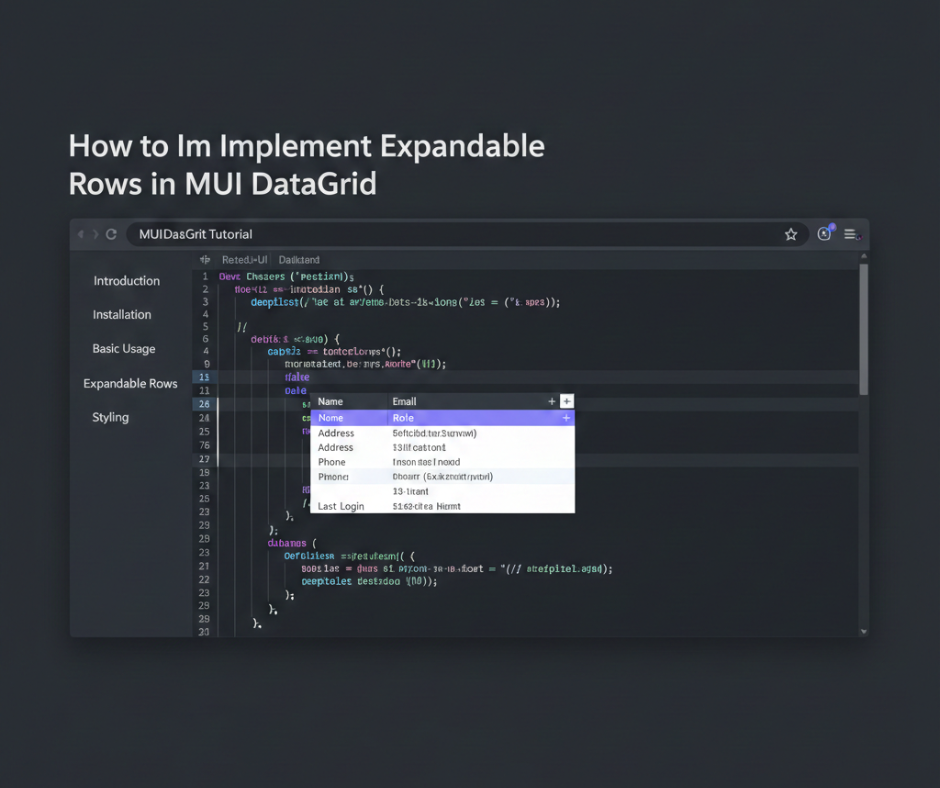
⭐ Step-by-Step Implementation
Step 1: Setup State for Expanded Rows
You need to track which row is expanded.
const [expandedRow, setExpandedRow] = useState(null);

const handleExpandClick = (id) => {
  setExpandedRow(expandedRow === id ? null : id);
};
Step 2: Add an Expand/Collapse Button Column
const columns = [
  {
    field: "expand",
    headerName: "",
    width: 60,
    sortable: false,
    renderCell: (params) => (
      <IconButton onClick={() => handleExpandClick(params.id)}>
        {expandedRow === params.id ? <ExpandLess /> : <ExpandMore />}
      </IconButton>
    )
  },
  { field: "name", headerName: "Name", width: 200 },
  { field: "email", headerName: "Email", width: 250 },
  // more fields...
];
Step 3: Add Rows and Render DataGrid
<DataGrid
  rows={rows}
  columns={columns}
  autoHeight
  disableRowSelectionOnClick
/>
Step 4: Render Expanded Content Below the Selected Row
Use a wrapper for DataGrid rows:
<Box>
  {rows.map((row) => (
    <React.Fragment key={row.id}>
      <DataGridRow row={row} onExpand={() => handleExpandClick(row.id)} />

      {expandedRow === row.id && (
        <Box sx={{ p: 2, backgroundColor: "#f7f7f7", border: "1px solid #ddd" }}>
          <Typography variant="subtitle1">Details:</Typography>
          <Typography>Name: {row.name}</Typography>
          <Typography>Email: {row.email}</Typography>

          {/* Custom details */}
          <Box sx={{ mt: 1 }}>
            <strong>Address:</strong> {row.address}
          </Box>
        </Box>
      )}
    </React.Fragment>
  ))}
</Box>
This results in a clean, expandable layout.
⭐ Bonus: Expandable Rows + Nested Table
A nested table (sub-table) is also common.
{expandedRow === row.id && (
  <Box sx={{ p: 2, backgroundColor: "#eef3ff" }}>
    <Typography variant="subtitle2">Order Details</Typography>
    <Table size="small">
      <TableHead>
        <TableRow>
          <TableCell>Item</TableCell>
          <TableCell>Qty</TableCell>
          <TableCell>Price</TableCell>
        </TableRow>
      </TableHead>

      <TableBody>
        {row.items.map((item) => (
          <TableRow key={item.id}>
            <TableCell>{item.name}</TableCell>
            <TableCell>{item.qty}</TableCell>
            <TableCell>{item.price}</TableCell>
          </TableRow>
        ))}
      </TableBody>
    </Table>
  </Box>
)}
This gives a highly functional dashboard UI.
⭐ Best Practices for Expandable Rows (2025)
✔ 1. Keep expanded content minimal
Don’t overload with too much information.
✔ 2. Add smooth transitions
Use MUI’s Collapse component for smooth UX.
✔ 3. Make expand icons clear
Use Chevron, Arrow, or Plus/Minus icons.
✔ 4. Lazy load heavy content
For large datasets, fetch details only when row expands.
✔ 5. Ensure mobile responsiveness
Expandable UI must work on small screens too.
⭐ When Not to Use Expandable Rows
Avoid expandable rows if:
- You have too many nested sections
- Users need to compare multiple rows simultaneously
- Data requires full-width views
In such cases, consider:
- Side panel drawer
- Modal
- New detail page
⭐ Conclusion
Expandable rows in MUI DataGrid bring flexibility, cleaner design, and better usability to modern web applications. Whether you’re building dashboards, CRM systems, eCommerce tools, or analytics platforms, expandable rows help you show more information without overwhelming your users.
With the right patterns, state management, and UI design, you can implement expandable rows that feel native, smooth, and highly functional.